Tampilkan postingan dengan label BEAUTY OF LINUX. Tampilkan semua postingan

How to update ubuntu 11:10 to 12:04

Rosyid Teknik | How to update ubuntu 11:10 to 12:04 | Ubuntu 12.04 LTS (Precise Pangolin) has just been released. This guide will show you how you can upgrade your Ubuntu 11.10 desktop installation on Ubuntu 12.04 LTS.

Starting Update Manager:


Update Manager should indicate that the distribution release (12.04 LTS) is available. Please do not click the Upgrade button, we must ensure that the latest updates, including the latest version of dpkg package has been installed. If you start the distribution upgrade with old dpkg version, you may damage your system.

To check the latest updates, click on the check button. Once the examination is complete, click on the Install Updates button to install the latest updates:


Type in your password:
 

The latest update is now being installed:


Click Restart Now to restart the system if necessary:


Update Manager should now show no updates to install. If that is the case (that) click the upgrade button to the right of the New Ubuntu LTS '12 .04 ':


A description of the release notes for Ubuntu 12:04 emerge. Click on the upgrade again:


Tools to upgrade now being downloaded. After that, type in your password:


Upgrade is being prepared:


Click Start Upgrade to begin the upgrade process:


Upgrade packages are now being downloaded and installed. It can take some time, so please be patient.

 
It is a good idea to extend the terminal window so that you can increase distribution react if your upgrade requires the input distribution (otherwise the upgrade will appear dubious):


At the end of the upgrade process, you must remove the old packages:
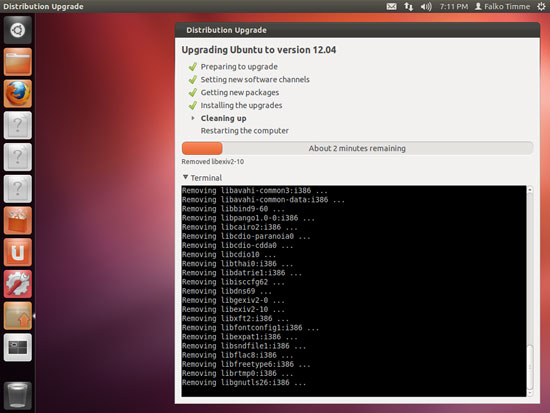


The system needs to reboot to complete the upgrade process, then click Restart Now:


The system will now boot to the desktop of your new Ubuntu 12.04:


Welcome to your new desktop new Ubuntu 12.04:
 

Linux Mint 14 NADIA Has Been Launched


Rosyid Teknink | Linux Mint 14 NADIA Has Been Launched | Linux Mint 14 Nadia brings updates and improvements to the GUI to support better performance,

Rosyid Teknink | Linux Mint 14 NADIA Has Been Launched | Linux Mint 14 Nadia brings updates and improvements to the GUI to support better performance, as well as adding some new functions and many improvements. As the main issue before, this time with the available options and Cinnamon MATE desktop, each for 32 and 64 bit. MATE 1.4 that is packaged, is a continuation of Gnome 2, while Cinnamon 1.6 is a Fork of Gnome-Shell and is a modification for Gnome 3.

According to its developers, MATE 1.4 is the first stable version as a result of improvements to Gnome 2. Mistake since many years faced Gnome 2, this time also been improved, while the functions are still considered to be lacking, as well as added. The Bluetooth feature is now functioning properly and the file manager only supports Drop box, able to specify the path and compare files. A table of characters have also been added with the possibility to configure the appearance.
Appearance Cinnamon MATE 1.6 is similar to that pursued in its entirety based on the appearance of Gnome 2. Workspace (Workspaces) in Cinnamon can now persistent (permanent) and named. Transition or replacement On-Screen-Display between workspaces, can also be configured. Applet 'Window Quick-List' allows to get a quick overview on all the windows of the working spaces. Applet for Scale effects and Expo are available, in addition to improvements to the Sound-Applet.

Manager software created specifically for the Mint no longer access it via apt-daemon, but uses Apt-Client self-developed. Thus, developers can claim that such features could be way more stable. To write data on the USB-Drive supplied from kitchen utensils Mint Stick Linux Mint development. Gedit 3 which is also the default editor in Gnome 3, have been exchanged for a reason 2:30 Gedit installed version is more stable. In addition, Mint Desktop Manager (MDM) is now able to use Themes from the GDM 2.

As in Ubuntu 12.10, Linux Mint 14 is also powered using the Linux Kernel version 3.5, as well as other components. Unless Desktop component, it can be said that Linux Mint 14 'Nadia' is identical with 'Quantal Quatzal' (Ubuntu 12.10) which has recently been outstanding. Developers are also reminded that on some computers with Intel graphics card should not install drivers for 3D acceleration, but take advantage of llvmpipe driver on the grounds that the CPU load is not a problem. Read the rest in the Release Notes for more detailed information.

How to Install Theme in Ubuntu Firefox

How to install theme in Ubuntu Firefox exactly how to install Firefox in Ubuntu theme is tantamount to install themes in windows is quite simple that way this way.

How to install theme in Ubuntu Firefox exactly how to install Firefox in Ubuntu theme is tantamount to install themes in windows is quite simple that way this way.
 
  1. Visit this site HERE
  2. Select a theme according to your taste buddy
  3. If there are suitable please point the cursor and click the + Add to Firefox, if no please click continue to download, then click + add to Firefox
  4. After that then Firefox will add automatically and after the addition is complete meal there will be a new tab ordering pal to click install (if you want to install) click cancel (if you want canceled)
  5. Once finished it will be ordered to restart Firefox
  6. And it's done installing car theme Firefox in Ubuntu

So first tutorial on this occasion, I hope this is all helpful for all Amin Ya Robbal Alamin


Writer By : ROSYID TEKNIK

Beautify Ubuntu With Compiz and Docky

Beautify ubuntu with compiz and docky, There are so many ways to beautify the look of ubuntu, like using Docky. to install docky is very simple, open a terminal
sudo apt-get install cairo-dock cairo-dock-plug-ins
 
 
after the installation process goes wrong we can open it in applications-accessories-docky, and it looks like this.


Not only with docky we can beautify our ubuntu appearance, with compiz can, the installation is the same way through the terminal.


Sudo apt-get install compiz-gnome compiz CompizConfig-settings-manager compiz-fusion-* -

to open the application when the installation is complete, system-preferences-CompizConfig, it looks just as it is.


That's one view of compiz that can blur like water, there are many displays on compiz. there are many more ways to make our ubuntu look pretty.

Thanks to : I.D.I.O.T.I.S.M.E.
Editing By : ROSYID TEKNIK

Let's Get used Using FOSS / Linux

Let's Get used Using FOSS / Linux, In the update this time I came up with an article titled "Let's Get used Using FOSS / Linux". The article "Let's Get used Using FOSS / Linux" is simply the result of a simple thought of me as a novice Linux user. We all know that our country is Indonesia, registered as a user of the original software (original bootleg). Surely this should not be allowed. Who would say if the country as a pirate state? Surely we are all no one wants. 

We definitely want our country Indonesia has a name that is fragrant and clean in the eyes of the world. Using FOSS / Linux is a way for our country Indonesia is clean of piracy. So, let us try to scent the country of Using FOSS / Linux. So that someday our country Indonesia has been named as the State anti software piracy. Who is not proud of when they hear the word. I am certainly proud of the little people especially who served as president. But somehow the government and law enforcement if they did not care about this? Yet this is not only tarnish the good name of the country, but it is also against the law. If this what the world?? Let's get together "scent Countries Using Foss / Linux". Regards Open Source ....!!!

How to Install Gnome Shell Themes in Ubuntu 12.04 LTS

How to Install Gnome Shell Themes in Ubuntu 12.04 LTS ? Here I will shering how to install gnome shell in ubuntu gnome shell 12:04 to understanding yourself googling yourself please you right now you just follow the steps below :

Installing and Enabling Gnome Shell If you have not installed the Gnome Shell in Ubuntu 12.04, so do with this command from the terminal:


1. Installing and Enabling Gnome Shell

If you have not installed the Gnome Shell in Ubuntu 12.04, so do with this command from the terminal:

sudo apt-get install gnome-shell

wait until the installation is complete, then Exit and select a menu from the GNOME session and log back in to use Gnome Shell:

Installing Gnome Tweak Tool  Gnome Tweak Tool is an application that allows us to set the theme of Gnome Shell and extensions. To install it in Ubuntu 12.04, run this command from the terminal


2. Installing Gnome Tweak Tool

Gnome Tweak Tool is an application that allows us to set the theme of Gnome Shell and extensions. To install it in Ubuntu 12.04, run this command from the terminal:

sudo apt-get install gnome-tweak-tool


Installing Gnome Shell Extensions  To be able to use Gnome Shell Extensions, you need to install Gnome Shell extensions by running this command sequence:


3. Installing Gnome Shell Extensions

To be able to use Gnome Shell Extensions, you need to install Gnome Shell extensions by running this command sequence:

sudo add-apt-repository ppa: ppa: gnome3-team/gnome3
sudo add-apt-repository ppa: ricotz / testing
sudo apt-get update
sudo apt-get install gnome-shell-extensions

After installation is complete, reset the Gnome Shell in the following way: ALT + F2 -> type "r" (without the quotes) -> Enter gan leave comments ...........

Thanks To : Syahrullinuxer


How to Install Synapse in Linux or Ubuntu

How to Install Synapse in Linux or Ubuntu ? Well now I will post an article regarding about Linux and Ubuntu software, this software called Synapse
How to Install Synapse in Linux or Ubuntu ? Well now I will post an article regarding about Linux and Ubuntu software, this software called Synapse. Synapse is a semantic launcher written in Val that you can use to start applications as well as find and access relevant documents and files by making use of the Zeitgeist engine. This application is very helpful to use your desktop as a display of genome Classic enverenment default desktop you are able to find all the content in your OS just like the Dash in the genome unity. The features are as follows:
  1. Applications: desktop file search 
  2. Banshee: allows you to play / enqueue music files in Banshee 
  3. Commands: run commands (eg 'sudo apt-get update ") 
  4. Devhelp: Search documentation using Devhelp 
  5. Dictionary: look up the definition of words 
  6. Dictionary Search: allows opening of commonly used directories 
  7. Genome Session: log out, shut down, restart 
  8. Hybird Search: complete Zeitgeist results by looking for the same file 
  9. Rhytmbox: play / enqueue music files in Rhythmbox 
  10. UPower: suspend and hibernate your computer 
  11. Zeitgeist: find something noted by Zeitgeist
 To install Synapse in Ubuntu / Linux Mint open Terminal ( Press Ctrl + Alt + T ) and copy the following command in Terminal:
  • sudo add-apt-repository ppa: synapse-core/ppa 
  • sudo apt-get update 
  • sudo apt-get install synapse
After installation go to the menu and open Synapse. Go to preferences and check the "Start up at login". To activate the synapse Press Ctrl + Space.

Thanks To : Zafin's Go Blog

 
Support : Creating Website | Johny Template | Mas Template | KAPAK Comunity | Komunitas Blogger Madura
Copyright © 2011. ROSYID TEKNIK | LET'S LEARN LINUX | BLOGGER | WORDPRESS - All Rights Reserved
Template Modify by Creating Website
Proudly powered by Blogger

Follower Rosyid